Class Infrastructure
Contents
Class Infrastructure#
Accessing Assignments#
Assignments will be located in /beegfs/sets/data-engineering-spr-23. See Canvas for specific instructions and filenames.
Generally, there will be a Jupyter notebook file for each assignment. These notebook files will be located in /beegfs/sets/data-engineering-spr-23/student; supplementary data is stored in /beegfs/sets/data-engineering-spr-23/student/datasets.
Starting Assignments#
First, log into the Wendian cluster and follow the instructions in Canvas for how to start an interactive Jupyter session.
To start an assignment, copy the instructor-indicated notebook file into your home directory. You can open a terminal from the main Jupyter page:
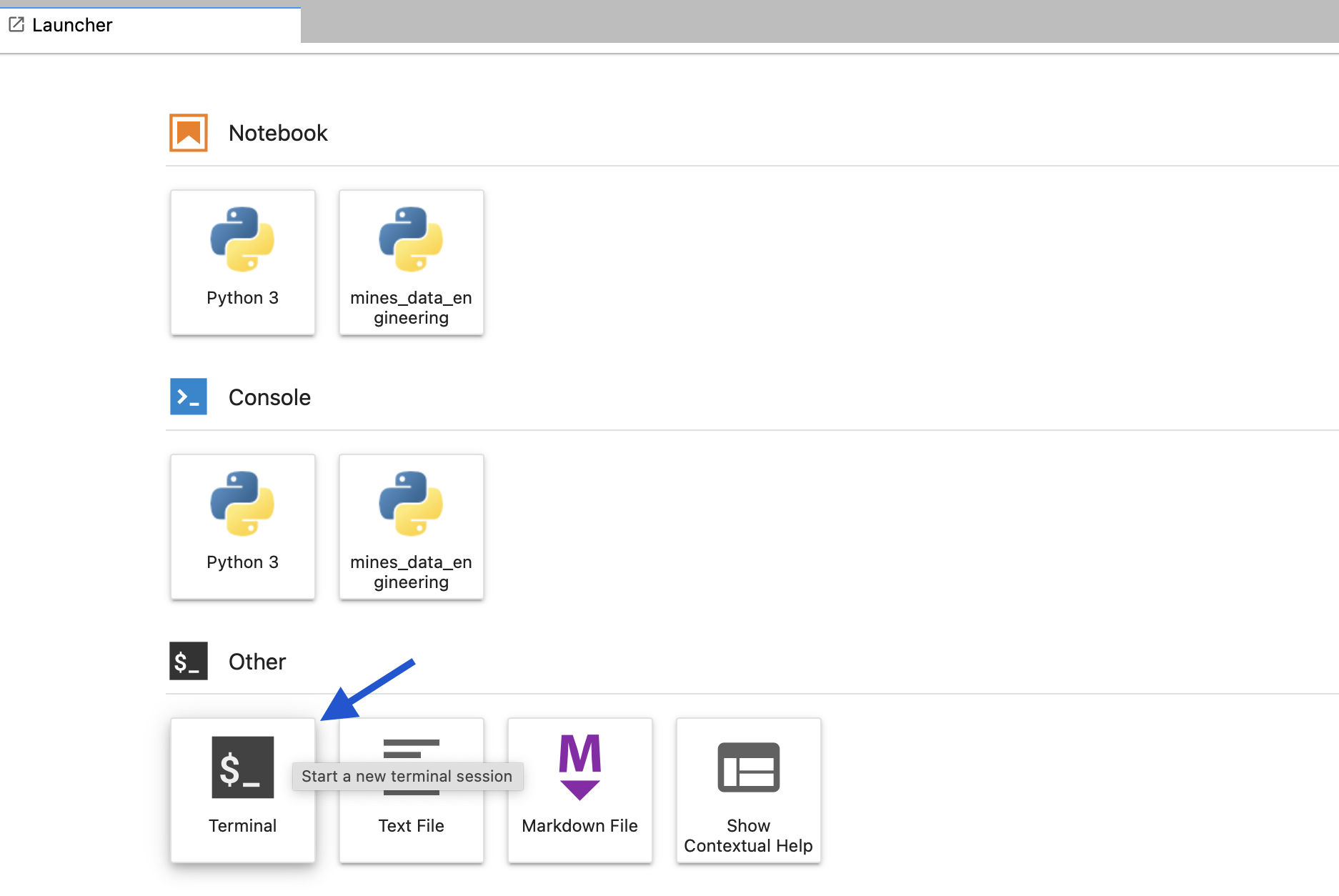
Fig. 1 Use the terminal to copy assignments to your home directory.#
Once in the terminal, copy the assignment file over using cp. For example, the first assignment is Assignment01.ipynb, so the correct command to copy this to your home directory is:
cp /beegfs/sets/data-engineering-spr-23/student/Assignment01.ipynb .
The notebook file should now appear in the file browser on the left:
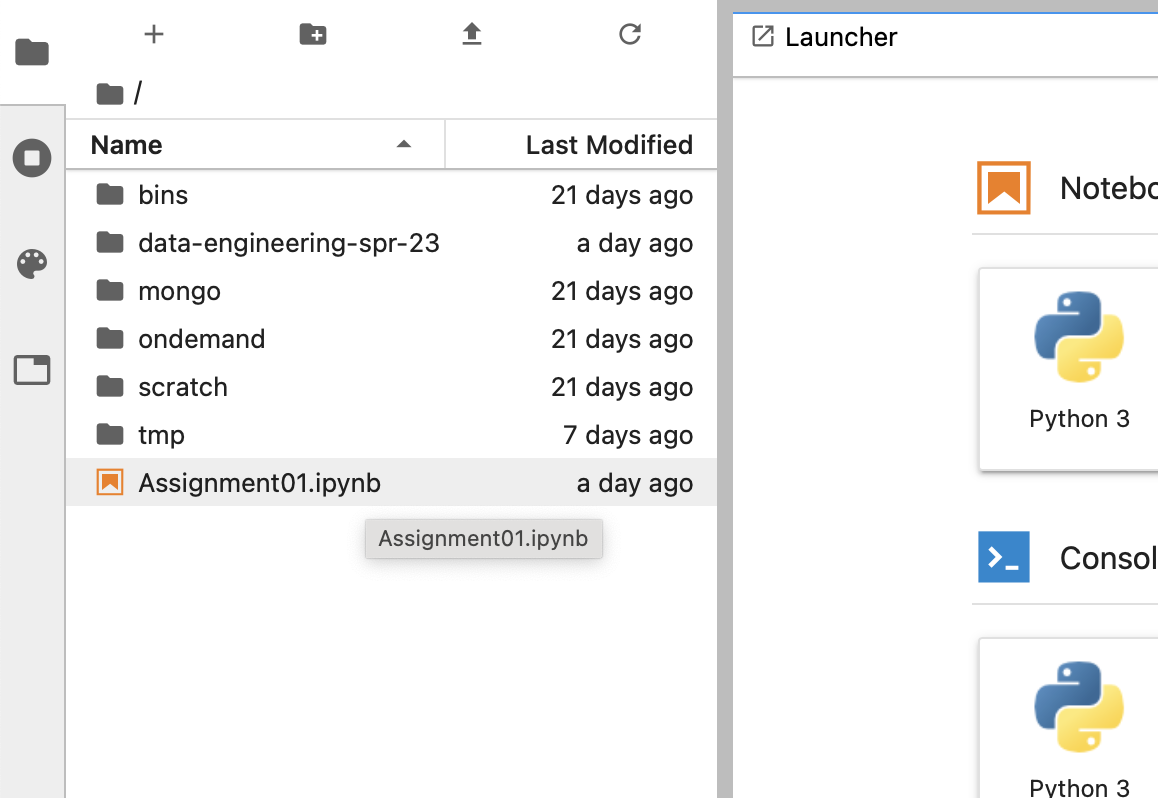
Fig. 2 Select the notebook file from the left-hand file browser.#
Double-click the notebook file to open it. Make sure that the kernel is set to mines_data_engineering:

Fig. 3 Make sure the kernel is mines_data_engineering; click the kernel to change.#
Submitting Assignments#
After the assignment is complete and you are ready to submit, execute the last cell of the notebook:
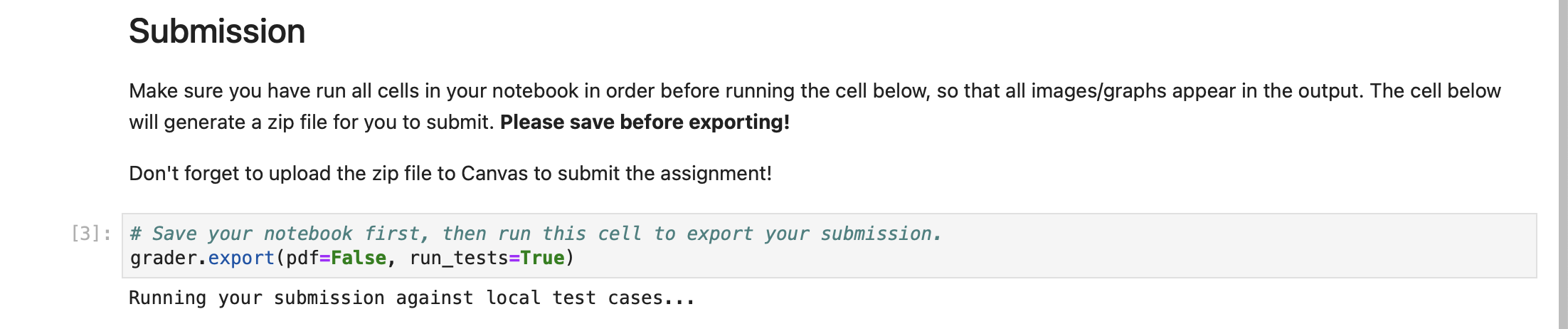
Fig. 4 Execute the last cell of the notebook to produce a ZIP file that can be submitted#
This will produce a ZIP file (visible in the left-hand file browser). Download the zip file and upload to Canvas to submit the assignment.
External Services#
External database services will be used in this course. To avoid students having to install, configure, and manage these database services, the mines-data-engineering Python package provides a simple interface for starting and stopping these database systems.
This package simplifies the process of starting common database systems in the background.
Installation#
Run the following from the command line
pip install mines-data-engineering
How Many Databases Can I Run?#
The Python package is set up to only allow you to run one instance of each database at a time. This is so we can play nice with the Mines HPC cluster and not use more resources than we need.
Every database has a start_<database name> function (e.g., start_mongo) and a corresponding stop_<database name> function.
Running the start_<database name> function will create a new container running a personal copy of your database just for you if one is not already running. It will return a connection string which can be passed to a Python client in order to correctly configure the connection to the database.
Running the start_<database name> function more than once will just return a connection string to the same database. Running the stop_<database name> function will stop the old database so that a fresh new one can be created when you next call start_<database name>.
Technically, I can’t stop you from starting as many of these as will run on whatever poor node you are handed by the Mines cluster scheduling software. However, there is really no good reason to do this. Please be nice!
Available Services#
MongoDB#
from mines_data_engineering import start_mongo, stop_mongo
import pymongo

# use the connecting string for your client
connection_string = start_mongo()

client = pymongo.MongoClient(connection_string)
client.my_db.my_col.insert_one({'finally': 'working'})
Postgres / TimescaleDB#
from mines_data_engineering import start_postgres, stop_postgres
import psycopg2

# use the connecting string for your client
connection_string = start_postgres()

conn = psycopg2.connect(connection_string)
cur = conn.cursor()
cur.execute("SELECT 1")
assert next(cur) == (1,)
Adding Another One#
Let me know if there is a database or other service you would like to run!
What’s Really Going On?#
Mines HPC uses Singularity Hub to manage containers. Because the sessions started through Wendian are not fully virtualized, the management of these containers (importantly: what directories and ports they use) has to be carefully managed.
Available images are stored in /sw/apps/singularity-images/mines_data_engineering. These are converted from Docker images.
When started, the databases will use temporary data directories in $HOME/scratch. This directory also contains the Unix Domain Sockets which are used to provide access. That’s right! We are not interacting with these databases over TCP! We are doing IPC the way Unix intended. What this means is that each of the functions for starting a database will return the connection string that should be passed to the client.